Why do we need Xiaomi USB Driver?
Xiaomi Corporation introduced its first smartphone years ago, and since then, devices from Xiaomi, Redmi, Poco, and Black Shark have become among the most popular Android phones and tablets worldwide. Today, millions of users rely on these devices for everyday use, and many need a reliable way to connect them to a Windows computer.
Android-based Xiaomi devices are compatible with the official Google ADB drivers. But in some cases, ADB drivers fail to work when you try to flash or install Stock Firmware on Xiaomi Devices, or when writing or fixing the device's IMEI number.
To fix this, Xiaomi officially released the Xiaomi Driver for Windows, which allows you to connect your Xiaomi, Redmi, Poco, or Black Shark Smartphone or Tablet to your computer. Once you have installed the Xiaomi Driver on your computer, you can easily connect the Xiaomi device to it.
It can be helpful if you are trying to transfer data between the Xiaomi device and the computer. You can also use it to sync the data between the computer and the Xiaomi device.
You can also use the Xiaomi Driver during firmware installation, IMEI writing, or when backing up the Xiaomi device to the computer. Whenever a Xiaomi device is connected to the computer with USB debugging enabled, ADB and related tools can communicate with the device reliably.
Download Xiaomi USB Driver for Windows
How to Install Xiaomi USB Driver on Windows?
These are instructions on how to install the Xiaomi Driver on a Windows computer, which helps you connect your Xiaomi devices to the computer. You need a Windows computer (32-bit or 64-bit) to install the Xiaomi Drivers.
- Download and extract the Xiaomi Driver on the computer. If you have already downloaded the USB Driver, then SKIP this step.

- After extracting the Xiaomi Driver package, you will be able to see the following files:
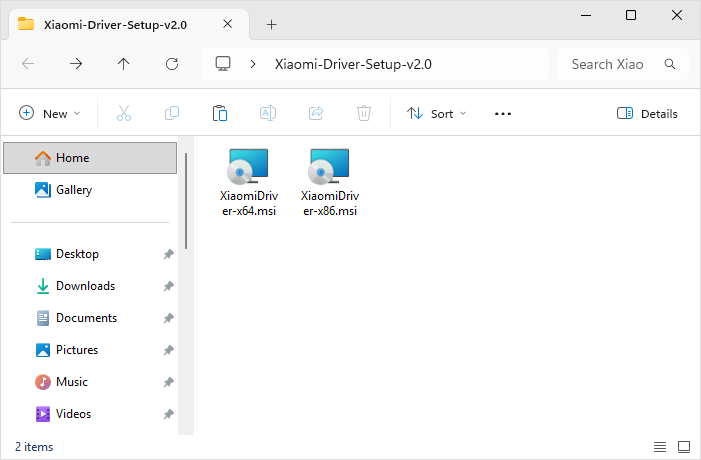
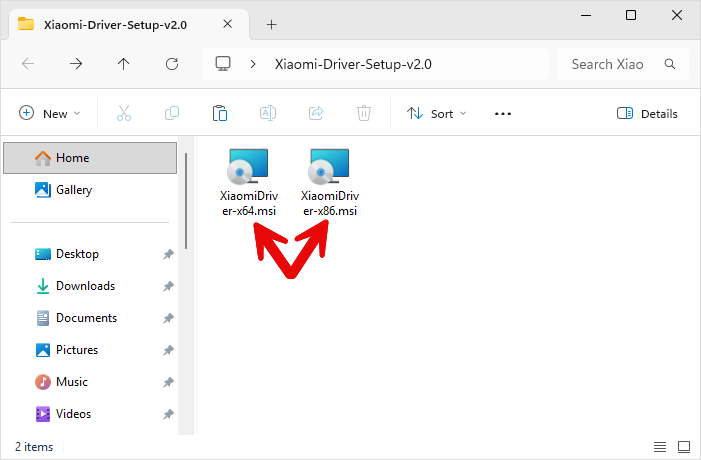
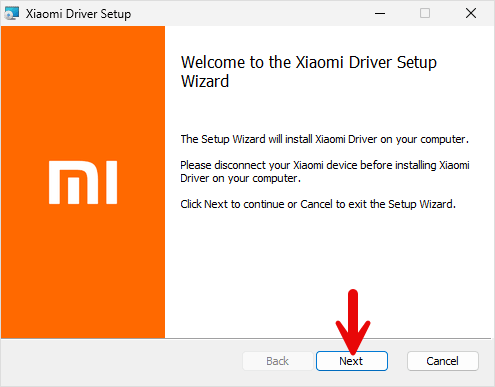
- Now, open XiaomiDriver-x64.msi (64-bit) or XiaomiDriver-x86.msi (32-bit):
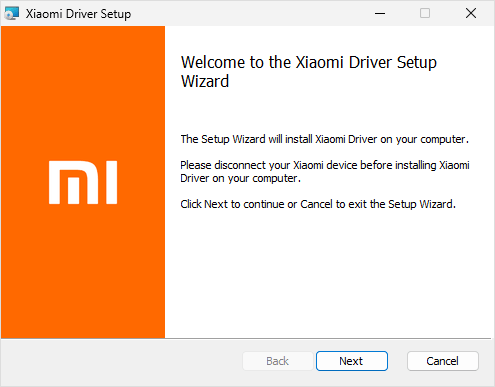
- Now, Click Next Button to Continue.
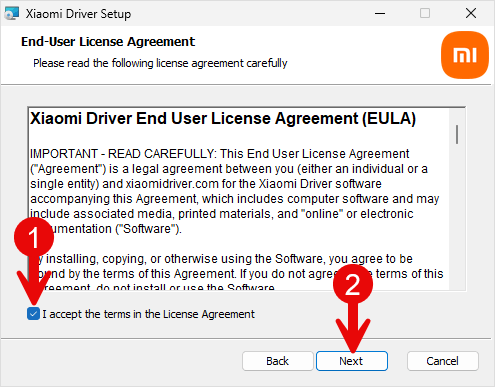
- Again, Click Next Button to Continue.
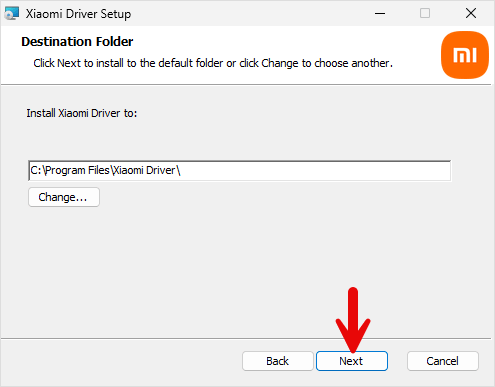
- Now, Choose the Installation Location (leave it as default) and Click Next Button.
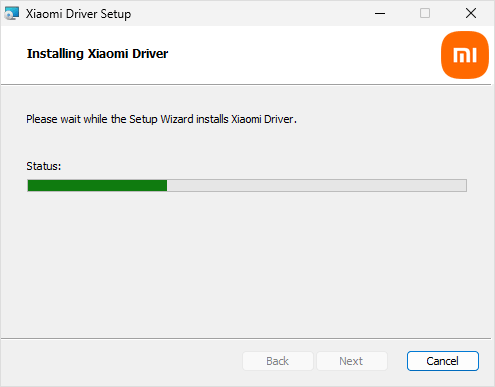
- Installation should finish within about a minute.
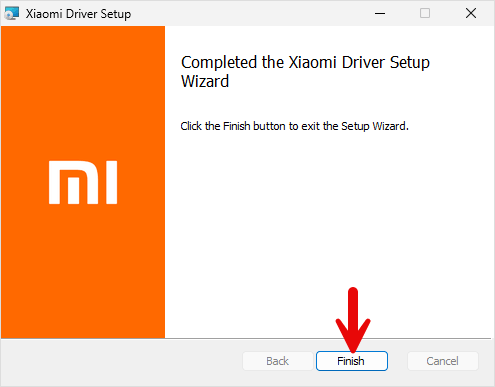
- Once Installation is Completed, Click Finish Button to Close the Setup.
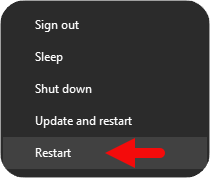
- Now, Restart your Computer. Once your computer is restarted, you can easily connect your Xiaomi phones to a Windows computer.
Xiaomi USB Driver – Help and Information
What is Xiaomi USB Drivers?
Generally, a USB driver for a mobile phone is a small utility that allows users to connect their mobile devices to computers. In this case, we are dealing with Xiaomi mobile devices. Application developers create mobile apps using a desktop computer, such as a Windows or Mac PC. It isn't easy to thoroughly test the software without installing it on a mobile device. Xiaomi Drivers make this possible for Xiaomi smartphones running Android OS.
For which platforms are Xiaomi Android USB Driver available?
The Xiaomi Driver for Xiaomi Android devices is available for all computers running on Windows OS, whether a Windows XP or the latest Windows 11. Both 32-bit and 64-bit computers are supported. Unfortunately, it is unavailable for Mac OS X computers or macOS and Linux.
Is Xiaomi USB Driver free?
Yes. The Xiaomi Driver is 100% free since the Xiaomi community officially releases it for Xiaomi Smartphone and Tablet users. Xiaomi device owners can find the exact Xiaomi drivers on the Xiaomi Support forums.
Is Xiaomi USB Driver safe?
Yes. The Xiaomi Driver is 100% safe for the computer, laptop, and Xiaomi mobile. Furthermore, since the Xiaomi community officially releases the driver, it's 100% safe and secure to use on the computer.
How often is the Xiaomi USB Driver updated?
There is no fixed schedule during which Xiaomi updates the USB drivers. Instead, updates are released to fix bugs and improve performance when needed. All updates come directly from Xiaomi.
How can I install Xiaomi USB Driver?
You can install the Xiaomi Driver by downloading the setup package and installing the driver on the Computer. The installation process is quite similar to the standard Windows Application. You can follow the How to install the Xiaomi Driver page to install the drivers correctly.
What devices does Xiaomi USB Driver work with?
Xiaomi Drivers are explicitly designed for Xiaomi, Redmi, Poco, and Black Shark smartphones and tablets running on Google's Android operating system. The Xiaomi Driver fully supports all Xiaomi-branded smartphones and tablets. It may or may not work for other devices.
Does Xiaomi USB Driver require an internet connection to use?
No. The Xiaomi Driver does not require an active internet connection to be used on a Windows computer or a laptop. You can connect Xiaomi devices to the computer via a USB cable, so no Wi-Fi or Bluetooth connection is required.
Can I view the contents on my device with the Xiaomi USB Driver?
No. Xiaomi Driver provides only the necessary system files, allowing your Xiaomi devices to communicate effectively with your computer. You cannot view the contents of your phone with the Xiaomi Driver alone. Once you have installed the Xiaomi Drivers on the computer, enable USB debugging on your Xiaomi device and connect it to the computer via a USB cable. Through Windows Explorer, you can view the device contents.
Does Xiaomi USB Driver work with both mobile and desktop devices?
The Xiaomi Driver is designed to be installed on a Windows PC or a laptop to ensure seamless communication between your Xiaomi device and the Windows computer. But, of course, you need a Xiaomi device to work with a computer.
Where can I find the Xiaomi Stock Firmware?
If you are looking for the Xiaomi Stock Firmware (ROM) for Xiaomi Smartphone and Tablets, then head over to Download Xiaomi Firmware (ROM) page.